

Firmware and software updates are meant to improve performance, security, and features—but in 2026, they’ve also become one of the leading causes of device failure. From smartphones stuck in boot loops to laptops that won’t power on, a failed update can instantly turn a working device into what technicians call a “bricked” device.
At Smart Electronix, we see this issue daily across phones, laptops, tablets, smartwatches, and IoT devices. The good news? Most bricked devices are recoverable—if handled correctly and quickly.
This guide explains why updates fail, how to identify the type of brick, and safe recovery methods you should follow before permanent damage occurs.
What Does “Bricked” Actually Mean?
A “bricked” device is one that no longer functions due to firmware or software corruption. It behaves like a brick—unresponsive and unusable.
Two Types of Bricks
Understanding the difference is critical:
🔹 Soft Brick
-
Device powers on but won’t boot
-
Stuck on logo or loading screen
-
Infinite restart loop
-
Recovery mode still accessible
✅ High chance of recovery
🔹 Hard Brick
-
No power response
-
No charging indicator
-
No recovery or bootloader access
-
Black screen even when plugged in
⚠️ More serious but still repairable in many cases
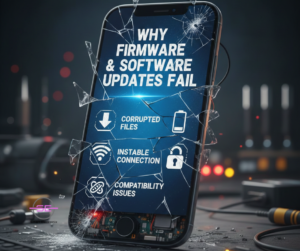
Why Firmware & Software Updates Fail
In 2026, update failures are increasing due to device complexity and ecosystem fragmentation.
Most Common Causes
-
Battery dying mid-update
-
Interrupted internet connection
-
Corrupted update files
-
Incompatible firmware versions
-
Manufacturer bugs
-
Region-locked firmware mismatches
-
Custom ROM or unofficial software conflicts
-
Storage full during update
-
Aging hardware unable to support new firmware
Foldables, modular devices, and IoT-connected phones are especially vulnerable.
Early Warning Signs Before a Device Bricks
Act immediately if you notice:
-
Update taking unusually long
-
Device overheating during update
-
Repeated restart during installation
-
Error messages like “Update failed”
-
Storage warning mid-update
Never force power-off unless instructed.
Step-by-Step: What to Do Immediately After a Failed Update
✅ 1. Stop Rebooting the Device
Repeated restarts can overwrite recovery partitions and worsen the damage.
✅ 2. Keep the Device Powered
Low power increases corruption risk. Plug into a stable power source.
✅ 3. Try Official Recovery Mode
Most devices support recovery access:
-
Android: Power + Volume Up/Down
-
iPhone: Recovery or DFU mode
-
Windows laptops: BIOS / Advanced Startup
-
MacBooks: macOS Recovery
If recovery mode loads, do not factory reset immediately—diagnosis comes first.
Safe Recovery Methods That Actually Work
1. Official Firmware Re-Flash (Recommended)
Manufacturers provide tools to reinstall firmware safely.
Examples:
-
Samsung Odin
-
Apple Finder / iTunes Restore
-
Google Pixel Flash Tool
-
Lenovo & HP BIOS recovery tools
⚠️ Incorrect firmware flashing can permanently brick the device.
2. Bootloader & Partition Repair
For Android devices, corrupted boot partitions cause most soft bricks.
Technicians use:
-
ADB & Fastboot tools
-
Partition re-mapping
-
Secure boot validation
This restores boot sequences without wiping user data (when possible).
3. BIOS & UEFI Recovery for Laptops
Laptop firmware failures are increasingly common after Windows updates.
Recovery options include:
-
USB BIOS recovery
-
CMOS reset
-
Firmware rollback
-
EC (Embedded Controller) reset
At Smart Electronix, we recover many “dead” laptops dismissed as unrepairable.
4. Firmware Downgrade (When Updates Are Incompatible)
Some devices run poorly—or fail—on newer firmware due to hardware aging.
A controlled downgrade can:
-
Restore stability
-
Fix boot loops
-
Reduce overheating
-
Improve battery life
⚠️ Downgrades must be done carefully to avoid security locks.
5. Component-Level Repair for Hard Bricks
When firmware damages power or storage controllers, software alone won’t fix it.
Advanced repair may involve:
-
Reprogramming NAND / SSD chips
-
IC replacement
-
Power management repair
-
Micro-soldering
This is not DIY-safe and requires specialist tools.
What You Should NEVER Do
❌ Flash random firmware from forums
❌ Use unofficial cracked repair tools
❌ Force factory resets repeatedly
❌ Heat the device hoping it “revives”
❌ Attempt soldering without experience
❌ Ignore backup warnings before updates
These actions turn recoverable devices into permanent losses.
Why Devices Brick More Often in 2026
Modern devices are:
-
More software-dependent
-
Tightly locked to manufacturers
-
Cloud-connected
-
Security-restricted
-
Region-specific
Foldables, smartwatches, and IoT-paired devices rely on multiple firmware layers, increasing failure risk.
How Smart Electronix Safely Recovers Bricked Devices
We follow a structured, risk-free recovery process:
🔧 Our Recovery Workflow
-
Brick type identification
-
Firmware integrity analysis
-
Power & storage health testing
-
Secure data preservation (when possible)
-
OEM-approved flashing
-
Hardware-software calibration
-
Post-recovery stress testing
🛡️ What Makes Us Different
-
No data tampering
-
Certified technicians
-
Manufacturer-grade tools
-
Component-level repair capability
-
Transparent pricing
-
No unnecessary part replacement
How to Prevent Firmware Bricking in the Future
✔ Always update with 50%+ battery
✔ Free at least 10–15GB storage
✔ Use stable Wi-Fi
✔ Avoid beta firmware unless necessary
✔ Delay updates on older devices
✔ Back up before every update
✔ Let professionals handle major firmware changes
Final Thoughts
Firmware updates are unavoidable—but bricking doesn’t have to be permanent. With the right steps and expert handling, most bricked devices can be safely recovered without data loss or expensive replacement.
If your phone, laptop, or smart device failed after an update, don’t panic—and don’t experiment blindly.
Smart Electronix specialises in safe firmware recovery, advanced diagnostics, and future-proof repair solutions for Australian consumers.