

Firmware updates are designed to make your devices better — improving performance, fixing bugs, and patching security vulnerabilities. But sometimes, these updates don’t go as planned. A sudden crash, an interrupted update, a corrupted file, or a compatibility issue can quickly turn a working device into a boot-looping, frozen, or completely unresponsive problem.
Whether it’s a smartphone, laptop, smartwatch, or gaming console, failed firmware updates are becoming increasingly common in 2025 as devices grow more complex and tightly integrated with cloud services. In this guide, we’ll explain why these failures happen, how to safely recover your device, and when to seek professional help.
1. What Is Firmware — and Why Do Updates Fail?
Firmware is the low-level software built into your device’s hardware. Unlike regular apps or OS updates, firmware controls:
-
Power management
-
Charging
-
Touchscreen functions
-
Modem & Wi-Fi
-
Storage controllers
-
Battery calibration
Because firmware interacts directly with the hardware, any disruption during an update can cause the entire device to malfunction.
Common reasons firmware updates go wrong:
-
Low battery during update
-
Interrupted Wi-Fi connection
-
Corrupted update files
-
Incompatible update versions
-
Internal storage errors
-
Third-party ROMs or rooted devices
-
Sudden shutdowns or overheating
When firmware becomes corrupted, the device often cannot boot normally — which is why users panic when their screen suddenly goes black.
2. Signs Your Firmware Update Has Failed
Firmware failures show up in different ways, depending on the device brand and model. The most common symptoms include:
✓ Stuck on company logo (Apple, Samsung, Dell, HP)
✓ Boot loop — device restarts endlessly
✓ Black screen with vibration or LED light
✓ “No Command” or recovery screen
✓ Touchscreen or keyboard stops responding
✓ Charging not detected
✓ Wi-Fi / Bluetooth no longer works
If you notice these signs immediately after a firmware update, do not keep forcing restarts — it can make recovery more difficult.
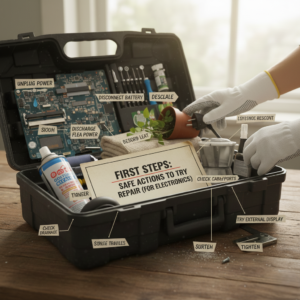
3. First Steps: Safe Actions to Try Before Repair
Before heading to a repair shop, there are several safe troubleshooting steps that often work.
✔ Charge the device for at least 30 minutes
Some devices enter firmware recovery mode when the battery is too low.
✔ Soft reset (safe restart)
Different brands have different combinations:
-
Smartphones: Power + Volume Down
-
Laptops: Long press the power button for 15 seconds
-
iPhones: Quick Volume Up → Volume Down → Hold Power
This won’t erase data.
✔ Try entering recovery mode
This allows you to:
-
Repair the firmware
-
Clear corrupt cache files
-
Update manually via USB
-
Restore device integrity
✔ Disconnect external devices (for laptops)
Sometimes firmware conflicts with connected hardware like docking stations or USB drives.
✔ Check brand recovery software
Most brands offer official recovery tools:
-
Apple: DFU Mode via Finder
-
Samsung: Odin
-
Huawei: HiSuite
-
Xiaomi: Mi Flash
-
Lenovo/Dell/HP: Firmware Repair Tools
These tools can reinstall the correct firmware without data loss.
4. When You Should Avoid DIY Fixes
Firmware is sensitive, and certain mistakes can permanently damage the device, especially when flashing software incorrectly.
Avoid DIY repair if:
-
The device has physical damage
-
The storage chip (EMMC/SSD) is failing
-
You smell burning or feel unusual heat
-
The device is stuck in Qualcomm QDLoader/Mask mode
-
You see “Secure Boot Error” or “FRP Lock” messages
In these cases, forcing firmware may cause additional data corruption or motherboard failure. Professional technicians use micro-soldering tools and hardware programmers to safely recover locked or bricked devices.
5. Professional Repair Options for Firmware-Related Failures
If you visit a certified repair shop, here’s what they typically offer:
✓ Firmware Reinstallation / Reflash
A clean version of the firmware is installed to restore the device.
✓ EMMC / UFS Chip Repair
If the internal storage is malfunctioning, technicians repair or replace the chip.
✓ Bootloader Repair
Fixes corrupted boot partitions that prevent the device from starting.
✓ BIOS/UEFI Repair (laptops)
Repairs firmware controlling keyboard, charging, and power-on functions.
✓ Data recovery (if needed)
Technicians recover photos, documents, and files even if the device cannot boot.
✓ Component-level micro-soldering
Used when firmware failed due to hardware faults such as:
-
Tristar/charging IC failure
-
PMIC overheating
-
Shorted motherboard lines
This level of repair requires expertise and special equipment.
6. How to Prevent Firmware Problems in the Future
The best repair is prevention. Before applying firmware updates:
✔ Keep your battery above 50%
✔ Use stable Wi-Fi
✔ Never interrupt or force-shutdown during updates
✔ Keep storage at least 10–15% free
✔ Only install official firmware (avoid third-party ROMs)
✔ Backup your data regularly
✔ Keep device temperature cool during updates
These small habits significantly reduce the chances of corruption.
7. Final Thoughts
Firmware updates are essential for keeping modern devices secure and efficient, but when they go wrong, the effects can be stressful. Knowing how to identify early signs of firmware failure — and understanding safe recovery steps — can save you time, money, and potential data loss.
If DIY methods don’t work, don’t force the issue. Professional technicians have specialized tools that can recover even severely corrupted firmware safely and reliably.
As devices continue to become more complex and firmware-driven, being prepared is your best protection.